6. GLSL Materials
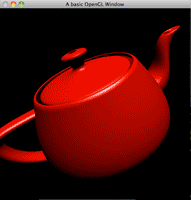
GLSL Materials
Materials in OpenGL define how objects interact with light, controlling their visual appearance under various lighting conditions. Using GLSL shaders, we can create realistic lighting effects by combining ambient, diffuse, and specular components. This tutorial implements these concepts and explains how the shaders work in detail.
Main Program
The main program initialises OpenGL, sets up shaders, and applies material properties to the teapot. Below is the full code:
#include <cstdlib>

#if defined(__MACH__) && defined(__APPLE__)
#include <OpenGL/gl.h>
#include <GLUT/glut.h>
#include <OpenGL/glext.h>
#else
#include <GL/glew.h>
#include <GL/gl.h>
#include <GL/glut.h>
#include <GL/glext.h>
#endif

#include "shader.h"

Shader shader;

// Rotation angle for animation
GLfloat angle = 0.0;

// Light position
GLfloat lx = 0.0, ly = 1.0, lz = 1.0, lw = 0.0;

void init(void) {
    glEnable(GL_DEPTH_TEST);  // Enable depth testing
    glEnable(GL_LIGHTING);    // Enable lighting calculations
    glEnable(GL_LIGHT0);      // Enable light source 0

    shader.init("shader.vert", "shader.frag"); // Load shaders
}

void cube(void) {
    glRotatef(angle, 1.0, 0.0, 0.0); // Rotate on X-axis
    glRotatef(angle, 0.0, 1.0, 0.0); // Rotate on Y-axis
    glRotatef(angle, 0.0, 0.0, 1.0); // Rotate on Z-axis

    GLfloat mShininess[] = {50};                  // Shininess
    GLfloat DiffuseMaterial[] = {1.0f, 0.0f, 0.0f, 1.0f}; // Red diffuse reflection
    GLfloat AmbientMaterial[] = {0.2f, 0.2f, 0.2f, 1.0f}; // Subtle ambient reflection
    GLfloat SpecularMaterial[] = {1.0f, 1.0f, 1.0f, 1.0f}; // White specular highlights

    glMaterialfv(GL_FRONT_AND_BACK, GL_DIFFUSE, DiffuseMaterial);
    glMaterialfv(GL_FRONT_AND_BACK, GL_AMBIENT, AmbientMaterial);
    glMaterialfv(GL_FRONT_AND_BACK, GL_SPECULAR, SpecularMaterial);
    glMaterialfv(GL_FRONT_AND_BACK, GL_SHININESS, mShininess);

    glutSolidTeapot(2.0); // Render teapot
}

void setLighting(void) {
    GLfloat DiffuseLight[] = {1.0f, 1.0f, 1.0f, 1.0f};
    GLfloat AmbientLight[] = {0.2f, 0.2f, 0.2f, 1.0f};
    GLfloat SpecularLight[] = {1.0f, 1.0f, 1.0f, 1.0f};
    GLfloat LightPosition[] = {lx, ly, lz, lw};

    glLightfv(GL_LIGHT0, GL_DIFFUSE, DiffuseLight);
    glLightfv(GL_LIGHT0, GL_AMBIENT, AmbientLight);
    glLightfv(GL_LIGHT0, GL_SPECULAR, SpecularLight);
    glLightfv(GL_LIGHT0, GL_POSITION, LightPosition);
}

void display(void) {
    glClear(GL_COLOR_BUFFER_BIT | GL_DEPTH_BUFFER_BIT); // Clear the screen
    glLoadIdentity();
    gluLookAt(0.0, 0.0, 5.0, 0.0, 0.0, 0.0, 0.0, 1.0, 0.0); // Camera position

    setLighting(); // Configure lighting

    shader.bind();  // Activate the shader program
    cube();         // Render the teapot
    shader.unbind(); // Deactivate the shader program

    glutSwapBuffers(); // Swap buffers for smooth rendering
    angle += 0.1f;    // Increment rotation angle
}

void reshape(int w, int h) {
    if (h == 0) h = 1;
    glViewport(0, 0, w, h);
    glMatrixMode(GL_PROJECTION);
    glLoadIdentity();
    gluPerspective(60, (GLfloat)w / (GLfloat)h, 1.0, 100.0);
    glMatrixMode(GL_MODELVIEW);
}

int main(int argc, char **argv) {
    glutInit(&argc, argv);
    glutInitDisplayMode(GLUT_DOUBLE | GLUT_RGBA | GLUT_DEPTH);
    glutInitWindowSize(500, 500);
    glutCreateWindow("GLSL Materials Example");

    glewInit();
    init();

    glutDisplayFunc(display);
    glutIdleFunc(display);
    glutReshapeFunc(reshape);

    glutMainLoop();
    return 0;
}
Vertex Shader
The vertex shader calculates and passes the data needed by the fragment shader. We are going to keep the normal, light direction and view direction in eye/view space. Keeping all of these vectors in the same space is the important bit; mixing world-space and eye-space vectors is a very easy way to get lighting that looks haunted.
varying vec3 vertex_normal;
varying vec3 vertex_light_direction;
varying vec3 vertex_view_direction;

void main() {
    vec4 eye_position = gl_ModelViewMatrix * gl_Vertex;

    // Normal, light and view vectors are all kept in eye/view space.
    vertex_normal = gl_NormalMatrix * gl_Normal;

    if (gl_LightSource[0].position.w == 0.0) {
        // Directional light.
        vertex_light_direction = gl_LightSource[0].position.xyz;
    } else {
        // Positional light: vector from this vertex to the light.
        vertex_light_direction =
            gl_LightSource[0].position.xyz - eye_position.xyz;
    }

    // In eye space the camera is at the origin.
    vertex_view_direction = -eye_position.xyz;

    gl_Position = gl_ModelViewProjectionMatrix * gl_Vertex;
}
Fragment Shader
The fragment shader computes the final lighting for each pixel, combining ambient, diffuse, and specular terms. Here’s a breakdown of its components:
Ambient Term
Ambient lighting provides a base level of light that uniformly illuminates the object.
vec4 ambient_color = gl_FrontMaterial.ambient * gl_LightSource[0].ambient +
                     gl_LightModel.ambient * gl_FrontMaterial.ambient;
Diffuse Term
Diffuse lighting simulates light that scatters equally in all directions from a surface.
vec3 normal = normalize(vertex_normal);
vec3 light_direction = normalize(vertex_light_direction);
float diffuse_value = max(dot(normal, light_direction), 0.0);
vec4 diffuse_color = gl_FrontMaterial.diffuse * gl_LightSource[0].diffuse * diffuse_value;
Specular Term
Specular lighting creates shiny highlights and depends on the angle between the light’s reflection and the viewer’s direction.
vec3 view_direction = normalize(vertex_view_direction);
vec3 half_vector = normalize(light_direction + view_direction);
vec4 specular_color = vec4(0.0);

if (diffuse_value > 0.0) {
    float specular_value = pow(
        max(dot(normal, half_vector), 0.0),
        gl_FrontMaterial.shininess);

    specular_color =
        gl_FrontMaterial.specular *
        gl_LightSource[0].specular *
        specular_value;
}
Final Colour
The final fragment colour combines the ambient, diffuse, and specular terms:
gl_FragColor = ambient_color + diffuse_color + specular_color;
Full Fragment Shader
Putting all of that together gives us:
varying vec3 vertex_normal;
varying vec3 vertex_light_direction;
varying vec3 vertex_view_direction;

void main() {
    vec3 normal = normalize(vertex_normal);
    vec3 light_direction = normalize(vertex_light_direction);
    vec3 view_direction = normalize(vertex_view_direction);

    float diffuse_value = max(dot(normal, light_direction), 0.0);

    vec4 ambient_color =
        gl_FrontMaterial.ambient * gl_LightSource[0].ambient +
        gl_FrontMaterial.ambient * gl_LightModel.ambient;

    vec4 diffuse_color =
        gl_FrontMaterial.diffuse *
        gl_LightSource[0].diffuse *
        diffuse_value;

    vec4 specular_color = vec4(0.0);

    if (diffuse_value > 0.0) {
        vec3 half_vector = normalize(light_direction + view_direction);
        float specular_value = pow(
            max(dot(normal, half_vector), 0.0),
            gl_FrontMaterial.shininess);

        specular_color =
            gl_FrontMaterial.specular *
            gl_LightSource[0].specular *
            specular_value;
    }

    gl_FragColor = ambient_color + diffuse_color + specular_color;
}
The old version of this tutorial referenced a vertex_light_position value that was never declared in the fragment shader. That was simply a bug. We now pass the light direction explicitly, which also makes it much clearer which coordinate space everything belongs to.
Source & downloads
Questions or corrections? If something doesn’t work or you spot something I’ve got wrong, leave a comment below. These tutorials have been around a long time, so useful corrections are always welcome!


Thanks for the helpful tutorials. My question is: how to detect lights count to calculate illumination in loop
for (int i = 0; i < numLights; ++i) { // where to get numLights?
…
}
Thanks
Igors
The easiest way is using a uniform and setting it in the application code. Normally you want to have fewer lights enabled on lower performance machines so you can keep frame rate.
This is very helpful, thank you.
I have heard from Lighthouse3D that the normal may be normalized twice: once in the vertex shader and again in the fragment shader. I know I have proven to be somewhat of a newbie (as I am), but when I substitute vertex_normal for vec3 fragment_normal = normalize(vertex_normal); I see a less vertex-ish lighting. Let me know what you think.
Hi Mitch,
You are totally correct with what you have read, and I should update the tutorial to comply, thats a mistake on my part.
It is required to normalize your variables in your fragment shader instead of your vertex shader, and this is explained on Lighthouse3D in detail as to why.
Cheers,
Swiftless
Love your new website, congratulations!