3. GLSL Colouring
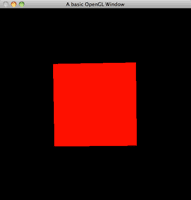
GLSL Colouring with gl_Color
In this tutorial, we will learn how to use gl_Color in GLSL shaders to replicate OpenGL’s fixed-function pipeline behaviour. This approach allows you to pass colours from your application (using functions like glColor3f and glColor4f) into your shaders, enabling custom effects while maintaining compatibility with older OpenGL conventions.
Using gl_Color here gives us a nice stepping stone from the fixed-function tutorials into shader-based rendering while keeping the familiar glColor* calls for the moment.
Why Use gl_Color?
In the fixed-function pipeline, colours were set directly in OpenGL using functions like glColor3f or glColor4f. With shaders, this functionality must be replicated manually. GLSL provides the built-in variable gl_Color for this purpose:
- Vertex Shader:
gl_Colorcontains the current legacy vertex colour supplied by calls such asglColor4f. - Fragment Shader: After the vertex shader writes
gl_FrontColor, the rasteriser interpolates that value and the compatibility fragment shader receives it asgl_Color.
This tutorial demonstrates how to set up a shader program that leverages gl_Color to control the colour of rendered objects dynamically.
Main Program
Here is the main.cpp file that initialises the OpenGL context, loads the shaders, and renders a rotating cube. The key line to note is glColor4f, which sets the cube’s colour.
#include "shader.h"

// Shader instance
Shader shader;
GLfloat angle = 0.0; // Rotation angle

void init(void) {
    glEnable(GL_DEPTH_TEST);  // Enable depth testing
    glDepthFunc(GL_LESS);     // Specify depth function

    shader.init("shader.vert", "shader.frag"); // Load shaders
}

void cube(void) {
    // Rotate the cube on all axes
    glRotatef(angle, 1.0, 0.0, 0.0);
    glRotatef(angle, 0.0, 1.0, 0.0);
    glRotatef(angle, 0.0, 0.0, 1.0);

    // Set the colour of the cube to red
    glColor4f(1.0, 0.0, 0.0, 1.0);

    // Render a solid cube
    glutSolidCube(2);
}

void display(void) {
    glClearColor(0.0, 0.0, 0.0, 1.0);               // Set background to black
    glClear(GL_COLOR_BUFFER_BIT | GL_DEPTH_BUFFER_BIT); // Clear buffers
    glLoadIdentity();                               // Reset transformation
    gluLookAt(0.0, 0.0, 5.0, 0.0, 0.0, 0.0, 0.0, 1.0, 0.0); // Set camera

    shader.bind();  // Activate shader
    cube();         // Draw the cube
    shader.unbind(); // Deactivate shader

    glutSwapBuffers(); // Swap buffers for smooth rendering
    angle += 0.1f;     // Increment rotation angle
}

void reshape(int w, int h) {
    if (h == 0) h = 1;
    glViewport(0, 0, (GLsizei)w, (GLsizei)h);
    glMatrixMode(GL_PROJECTION);
    glLoadIdentity();
    gluPerspective(60, (GLfloat)w / (GLfloat)h, 1.0, 100.0);
    glMatrixMode(GL_MODELVIEW);
}

int main(int argc, char **argv) {
    glutInit(&argc, argv);
    glutInitDisplayMode(GLUT_DOUBLE | GLUT_RGBA | GLUT_DEPTH);
    glutInitWindowSize(500, 500);
    glutCreateWindow("GLSL Coloring Example");

    glewInit();    // Initialise GLEW
    init();        // Initialise OpenGL state

    glutDisplayFunc(display); // Set display callback
    glutIdleFunc(display);    // Set idle callback
    glutReshapeFunc(reshape); // Set reshape callback

    glutMainLoop(); // Enter the main loop
    return 0;
}
Vertex Shader
The vertex shader passes the colour from the application to the fragment shader using the built-in variable gl_FrontColor:
void main() {
    // Pass the colour to the fragment shader
    gl_FrontColor = gl_Color;

    // Transform the vertex position
    gl_Position = gl_ModelViewProjectionMatrix * gl_Vertex;
}
Explanation:
gl_FrontColor: The legacy vertex-shader output for the front-face primary colour.gl_Color: In the vertex shader, receives the current colour set byglColor3f/glColor4f.gl_ModelViewProjectionMatrix: The legacy combined model-view and projection transform.
Fragment Shader
The fragment shader uses the interpolated colour from the vertex shader to set the pixel colour:
void main() {
    // Set the pixel colour
    gl_FragColor = gl_Color;
}
Explanation:
gl_FragColor: Sets the fragment shader output colour in this legacy GLSL version.gl_Color: In the compatibility fragment shader, this is the interpolated primary colour produced by the vertex stage.
Why Do We Use gl_FrontColor And gl_FragColor?
gl_FrontColor is an output from the vertex shader. OpenGL interpolates it across the primitive and exposes the result to the compatibility fragment shader as gl_Color. The fragment shader then writes its final result to gl_FragColor.
That may sound like we are passing the colour through a few hoops just to end up with the same red cube, and we are! But it shows the exact path the data takes, which becomes much more useful once we start modifying the colour in the shaders.
What If The Shader Fails?
The old version of this tutorial implied that a failed shader would automatically fall back to the fixed-function pipeline. OpenGL does not do that for us. We should check compile/link status (as in the previous tutorial) and then decide in our own application whether to use another program, deliberately switch back to a compatibility fixed-function path, or stop rendering that object.
Source & downloads
Questions or corrections? If something doesn’t work or you spot something I’ve got wrong, leave a comment below. These tutorials have been around a long time, so useful corrections are always welcome!


hello sir,
Can we assign gl_FragColor is fragment shader a value given from user dynamically in runtime? say I get the Color value from a textbox and pass it to fragment shader code by some mean and use it to render color. Please help me I need to accomplish it.
Thank you.
Arpan
Hi just wanted to give you a brief heads up and
let you know a few of the pictures aren’t loading correctly. I’m not sure why but I think its a linking issue.
I’ve tried it in two different browsers and both show the same outcome.
Thanks for this! I was wondering why gl_Color was always 0,0,0,0 in my fragment shader. I didn’t realize it was interpolated from the vertex shader based on gl_FrontColor.
Hi Swiftless,
Every thing works great, but why am I seeing a White cube instead of a Red cube as set by glColor4f();
Hi Paras,
My guess would be that your shader isn’t loading correctly. Other than that, if the code is the same as the tutorial, it should work.
Thanks,
Swiftless
Finally, a tutorial which uses some old-school direct render calls, glVertex*, glColor*, with GL3 shaders!
This really solved my problem!
I agree with Steve, I’d like to see how to write and use a shader that works with direct glVertex*, glColor*, but does not use compatibility profile attribute variables.
I’d like to see how I could attach glVertex* and glColor* to some named attribute in a GLSL shader.
Hi Mr. What,
In the OpenGL 4 tutorials, I have named attributes which are sent to the shaders, however these don’t link to glVertex and glColor calls which have since been removed. They instead link to a VBO which stores the data.
In OpenGL 2.x and prior, glVertex and glColor calls were automatically mapped by OpenGL to GLSL variables gl_Color and gl_Vertex.
Cheers,
Swiftless
hm – all tutorials i read so far are using compatibility profile.
Build ins like gl_Color, gl_ModelViewProjectionMatrix, gl_Vertex … are all deprecated and removed in core profiles. I would appreciate it to read tutorials for core-profiles, not for compatibility profile using deprecated variables and functions.
Hey Steve,
I think you might want to check out the OpenGL 4 tutorials mate 😉
Cheers,
Swiftless