11. OpenGL Lighting (Version 2.0)
Introduction
Lighting is a fundamental concept in creating realistic 3D objects within OpenGL applications. By using OpenGL’s built-in lighting features, we can simulate how light interacts with objects, adding depth and realism to our scenes.
In this tutorial, we’ll walk through the steps to enable and configure lighting in OpenGL. This includes enabling depth testing, activating lighting, and customising light properties. While OpenGL’s built-in lighting capabilities are limited to eight lights, it offers enough functionality for many basic 3D applications.
Usage
OpenGL simplifies lighting setup with a few core functions. First, we must enable depth testing to ensure proper rendering of 3D objects. Without depth testing, lighting effects might not appear correctly.
To enable depth testing, use the following commands:
glClearDepth(1.0);            // Clear the depth buffer
glEnable(GL_DEPTH_TEST);      // Enable depth testing
Next, we activate OpenGL’s lighting system by calling:
glEnable(GL_LIGHTING);
OpenGL supports up to eight individual lights, labeled GL_LIGHT0 through GL_LIGHT7. To activate a light, you can enable it with a command like this:
glEnable(GL_LIGHT0);
You can enable additional lights similarly:
glEnable(GL_LIGHT1);
glEnable(GL_LIGHT2);
glEnable(GL_LIGHT3);
// Continue for GL_LIGHT4 through GL_LIGHT7 if needed
Coding
Now, let’s implement basic lighting in an OpenGL scene. For this example, we will light a cube rendered with GLUT.
First, ensure depth testing and lighting are enabled as shown earlier. Then, enable at least one light source:
glEnable(GL_LIGHT0); // Enable the first light source
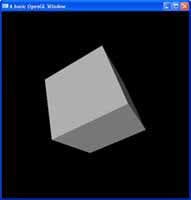
When you run the program, you’ll notice the cube is lit but appears only in shades of white and grey. This happens because we haven’t yet set the light’s colour properties or enabled colour material functionality.
To use object colours alongside lighting, you need to enable colour material support:
glEnable(GL_COLOR_MATERIAL);
Additionally, define colours for your light and objects using OpenGL functions like glLightfv and glColor3f. These ensure that the lighting interacts with your objects’ materials properly.
Tutorial Code
#include <GL/glut.h>

void display() {
    glClear(GL_COLOR_BUFFER_BIT | GL_DEPTH_BUFFER_BIT);
    glLoadIdentity();

    // Set up lighting
    glEnable(GL_LIGHTING);
    glEnable(GL_LIGHT0);
    glEnable(GL_COLOR_MATERIAL);

    // Position the light
    GLfloat lightPos[] = { 0.0f, 0.0f, 1.0f, 1.0f }; // Positional light
    glLightfv(GL_LIGHT0, GL_POSITION, lightPos);

    // Set light color
    GLfloat lightColor[] = { 1.0f, 1.0f, 1.0f, 1.0f }; // White light
    glLightfv(GL_LIGHT0, GL_DIFFUSE, lightColor);

    // Draw a colored cube
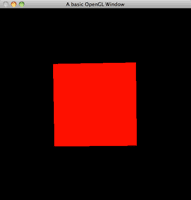
    glColor3f(1.0f, 0.0f, 0.0f); // Red color
    glutSolidCube(1.0f);

    glutSwapBuffers();
}

int main(int argc, char** argv) {
    glutInit(&argc, argv);
    glutInitDisplayMode(GLUT_DOUBLE | GLUT_RGB | GLUT_DEPTH);
    glutCreateWindow("OpenGL Lighting Example");

    glEnable(GL_DEPTH_TEST); // Enable depth testing
    glutDisplayFunc(display);

    glutMainLoop();
    return 0;
}
Source & downloads
Questions or corrections? If something doesn’t work or you spot something I’ve got wrong, leave a comment below. These tutorials have been around a long time, so useful corrections are always welcome!

Please add some images to the tutorials, cause it’s more didactic.
Thank you.
Hey it’s Dario again!
I’m trying to catch up on a lot of comments since I don’t get much time these days to play with the site.
If you’re offering to provide some images, that’d be great thanks!
Look forward to your next negative comment.
Thanks,
Swiftless
Great Work! thanks for the tutorials. But I see this tutorial has different format than others. There is also an ad in between the code. Other than this everything is fine. 🙂
Hi i have a problem with this part it says that its undeclared
glutSolidCube(2);
I added some code to make my cube transparent and colored (red), but I noticed that all my sides are transparent except one, which is completely opaque. Why is that?
P.S. I added some other colored shapes in there too, it’s cool to see the blending work with multiple objects/shapes of different colors.
Hi, the lighting works fine if I use primitive 3D objects such as glutSolidCube. But it doesn’t work if I create the cube using GL_QUADS. I wonder why is it like that :S And if you can tell me what is the solution to this matter, I’d be really grateful. Thank you 🙂
Hi Fiona,
That is because glutSolidCube also includes the normals associated with the faces. In order to get lighting to work on standard GL_QUADS, GL_TRIANGLES, etc, you need to assign a normal to either each vertex or each face, so that the lighting algorithm has something to compare the light to the surface.
Cheers,
Swiftless
I think previous tutorials (those at the beginning) were more explanatory,I wish you kept these more important tutorials longer.
Hi, You should try to define glClearColor and glClearDepth in your init() method. From then on, calling glClear (GL_COLOR_BUFFER_BIT | GL_DEPTH_BUFFER_BIT); will automatically clear those bits to the defined colors in init().
Hi KylBlz,
I’m going to disagree with you there and suggest setting the clear depth and clear color during your rendering loop for the sake of getting into the habit. For basic OpenGL applications you will often only need the one setting, but once you get into multiple rendering passes and start trying more advanced OpneGL, you will often have to vary these values at different times
Cheers,
Swiftless
Hi Lonelobo,
Unless you are going to call the lighting init after the gluLookAt, there is no reason to call it in the display function.
Although if you add a camera of some sort, then it is best to place the light position after the camera.
This is because the camera uses the current model view matrix to transform it’s position by.
Cheers,
Swiftless
This piece of code doesn’t seem to work in my project. Must whe not call void init (void) in the display fuction or so?